AI Image Generation
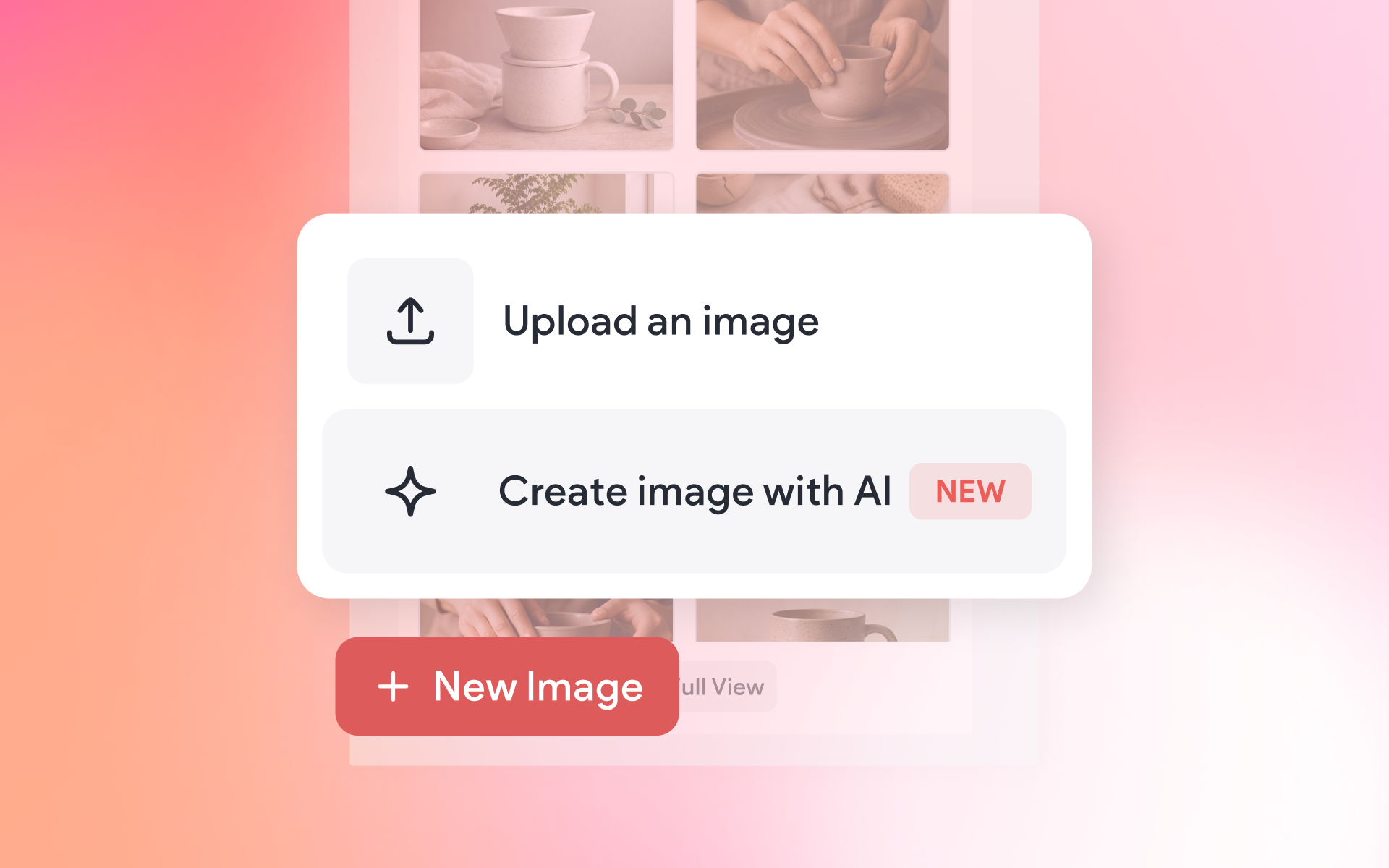
The AI Image Generation feature lets you create custom images directly inside the editor, without leaving your workflow or searching stock libraries. Available across image widgets, backgrounds, the media panel, and more, simply describe what you need and AI generates it in seconds. Once created, you can refine the image by editing your prompt, generating new variations, or starting over, giving you full creative control until the result is exactly right.
Image Widget
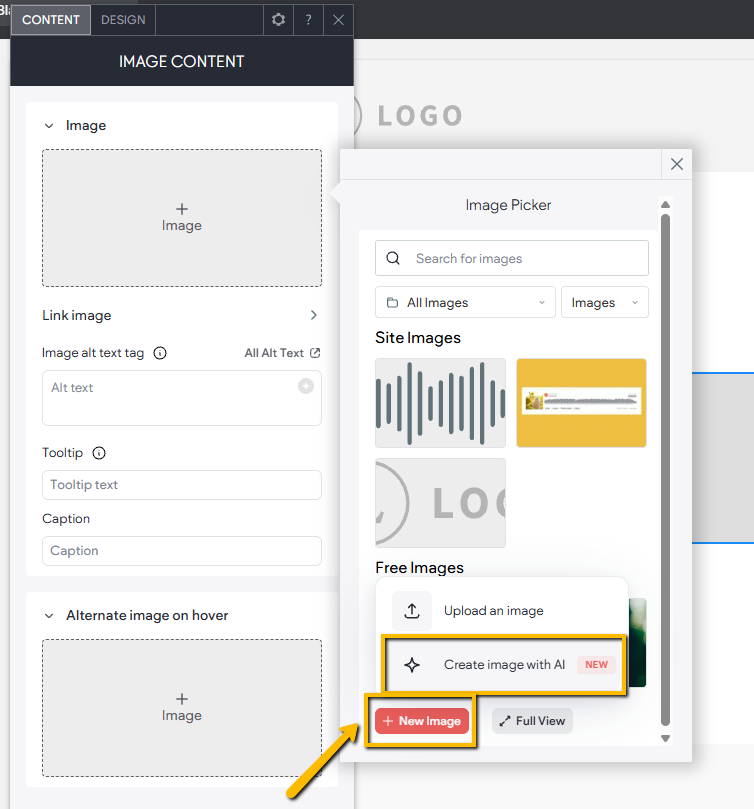
Within the image widget, clicking the +New Image button gives you the option to upload an image, as well as the Create Image with AI option.
Media Manager
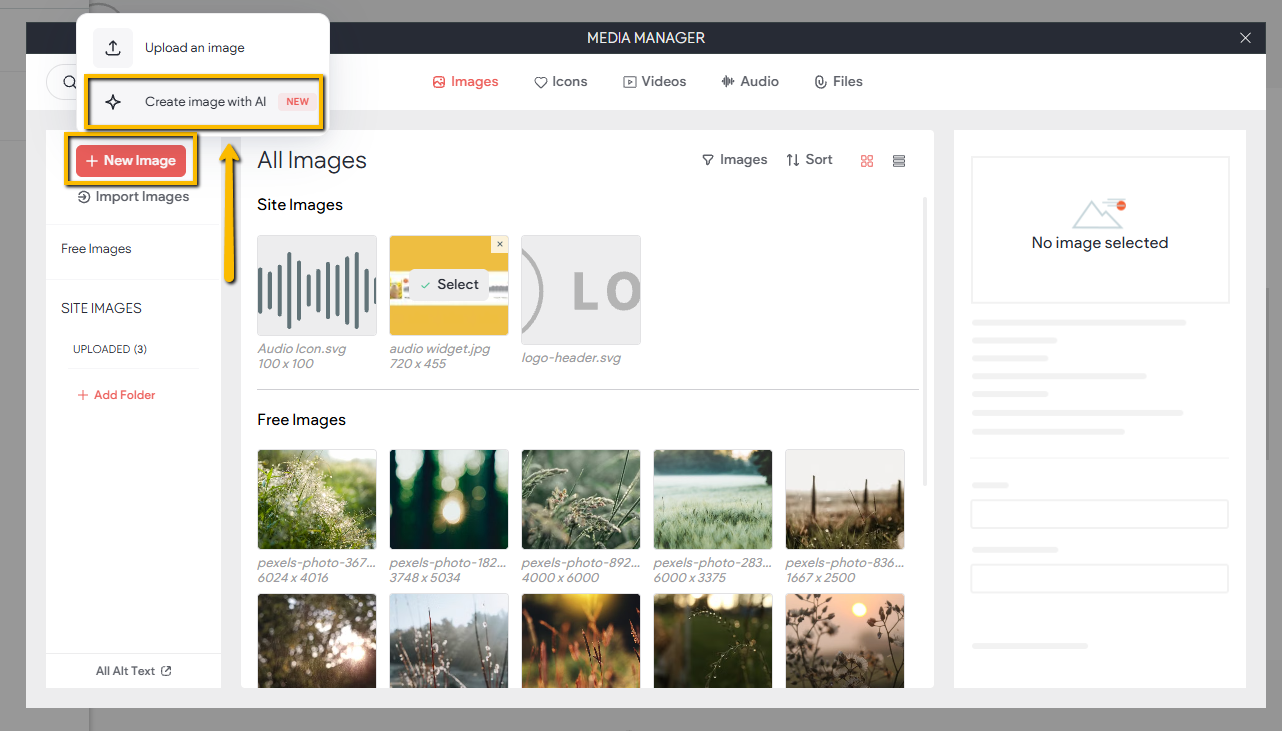
Within the Media Manager window, clicking the +New Image button gives you the option to upload an image, as well as the Create Image with AI option.
Generating AI Images
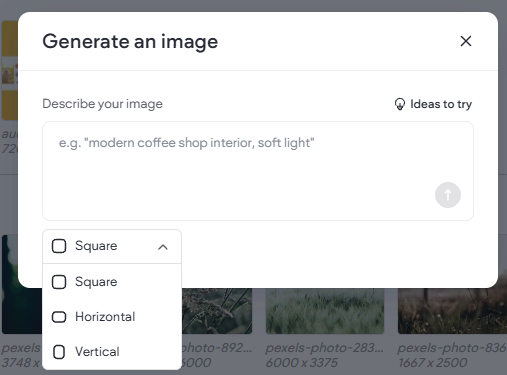
After clicking Create Image with AI, a popup will appear. This popup lets you describe the image you want to create, as well as specify the image size (square, horizontal, or vertical).
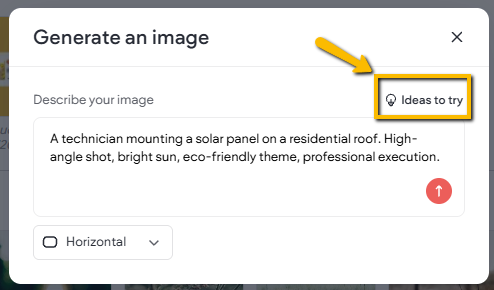
There's also an Ideas to Try button. Clicking it auto-fills the image description field, which you can either use as-is to generate that image, or use as a reference to better understand how to write your own prompts.
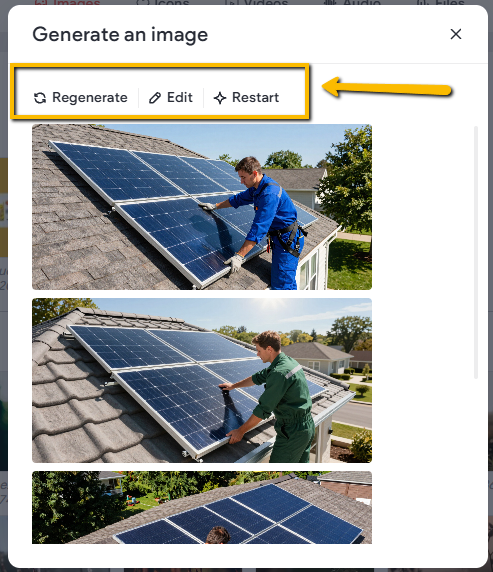
Once ready, click the up arrow icon to begin the generation process. When complete, the generated images will be displayed. Hover over any image and click Use This to add it directly to the site.
You'll also find the following options at the top of the list:
- Regenerate: Regenerates the images based on the original prompt.
- Edit: Lets you edit or change the AI prompt as well as the image shape, then regenerates the images accordingly.
- Restart: Takes you back to start your AI prompt from scratch.